
Dropbox
This document is a step-by-step guide to setting up Dropbox SSO in Gluu Server.
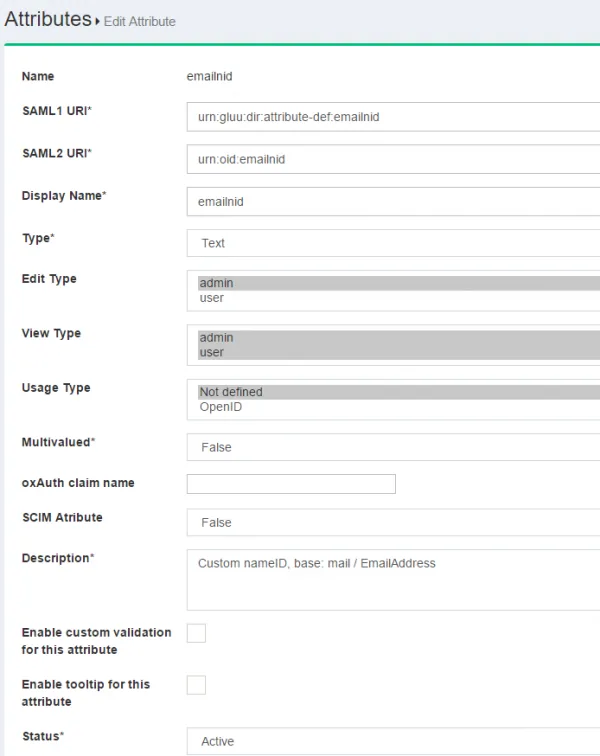
This SSO requires setting a custom nameid called emailnid.
#Custom NameID
Please refer here on how to create custom attributes.
The new attribute screen should look like the screenshot below
The custom
nameidneeds to be defined in theattribute-resolvertemplate file. Documentation is available hereRestart the
identityandidpservices
#Trust Relationship
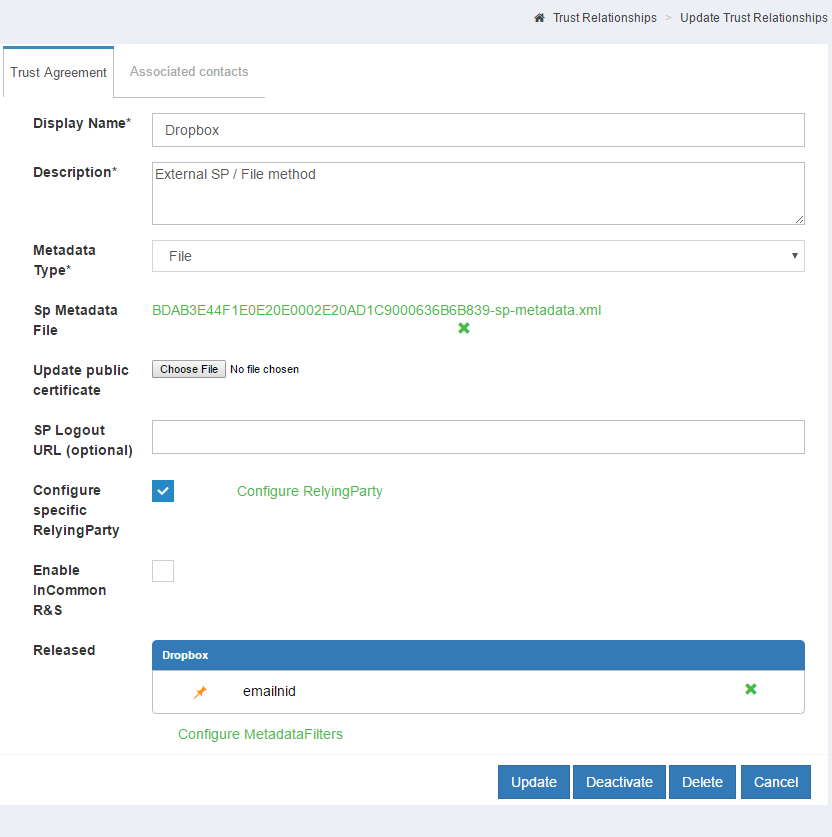
Please refer here to create trust relationship and fill up the form with the following info
The metadata for Dropbox is necessary to create trust relationship. Please use the following snippet so create the dropbox_metadata.xml.
 <EntityDescriptor entityID="Dropbox" xmlns="urn:oasis:names:tc:SAML:2.0:metadata">
    <SPSSODescriptor protocolSupportEnumeration="urn:oasis:names:tc:SAML:2.0:protocol">
        <NameIDFormat>urn:oasis:names:tc:SAML:1.1:nameid-format:emailAddress</NameIDFormat>
        <AssertionConsumerService index="1" Binding="urn:oasis:names:tc:SAML:2.0:bindings:HTTP-POST" Location="https://www.dropbox.com/saml_login" />
    </SPSSODescriptor>
</EntityDescriptor> - Display Name: Dropbox
- Description: External SP / File method
- Metadata Type: File
- SP Metadata File: Upload the 'dropbox_metadata.xml' which you just created
- Configure Specific RelyiningParty: Yes
signResponses: conditional
signAssertions: never
signRequests: conditional
encryptAssertions: never
encryptNameIds: never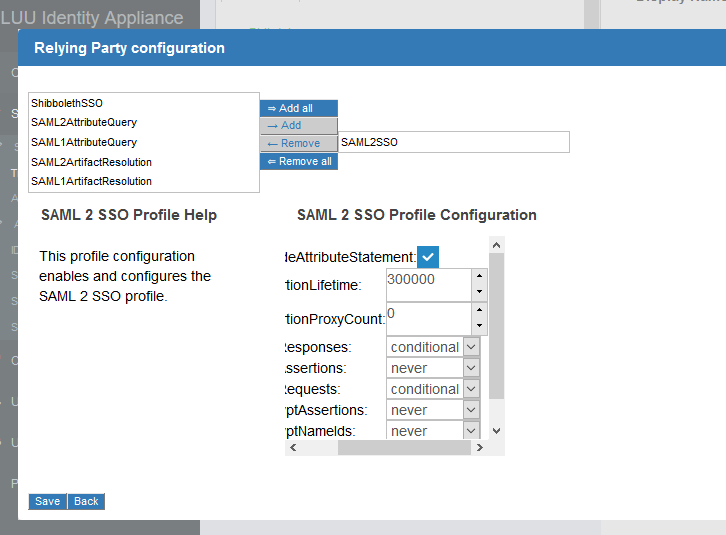
- Released attribute: emailnid
#Configure Gluu Server as IdP in Dropbox
Log into Dropbox
Click on
Admin ConsoleClick
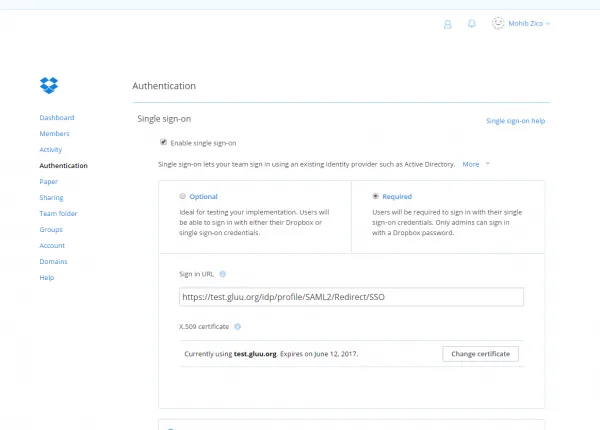
AuthenticationClick on the checkbox labeled
Enable single-sign-onOptional/Required according to necessity
- Sign in URL
https://<hostname_of_Gluu_server>/idp/profile/SAML2/Redirect/SSO- X.509 certificate
Get
shibIDP.crtfrom Gluu Serverchrootenvironment under/etc/certs/folder and upload it
- Save configuration
#Test SSO
Access https://www.dropbox.com and click on the
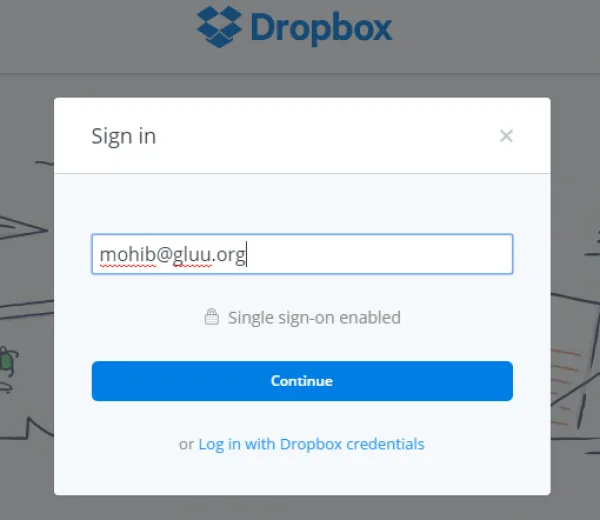
Sign InbuttonIf the account is configured for SSO, then a screen similar to the screenshot below will appear after entering the email address.
Click
Continueand the website will redirect to Gluu Server for authentication.