
Forgot Password
#Overview
As a privileged user, the administrator can configure the password reset feature built into the Gluu Server. This feature gives users the ability to reset their password. Below are the steps to configure that feature:
- Provide the SMTP Server configuration
- Enable password reset on oxTrust adminUI
- Test
#Prerequisites
The following are requirements to use this feature:
- An active Gluu Server instance with oxTrust accessible via the web
- A working SMTP Server
#Provide the SMTP Server Configuration
The Gluu Server requires an SMTP server to be able to send password reset emails to the user's mailbox. A suitable UI is provided to gather the SMTP server configuation on Gluu OxTrust AdminUI.
Log into the Gluu Server as a user with admin privileges
Navigate to
Configuration>Organization ConfigurationSelect the
SMTP Server Configurationtab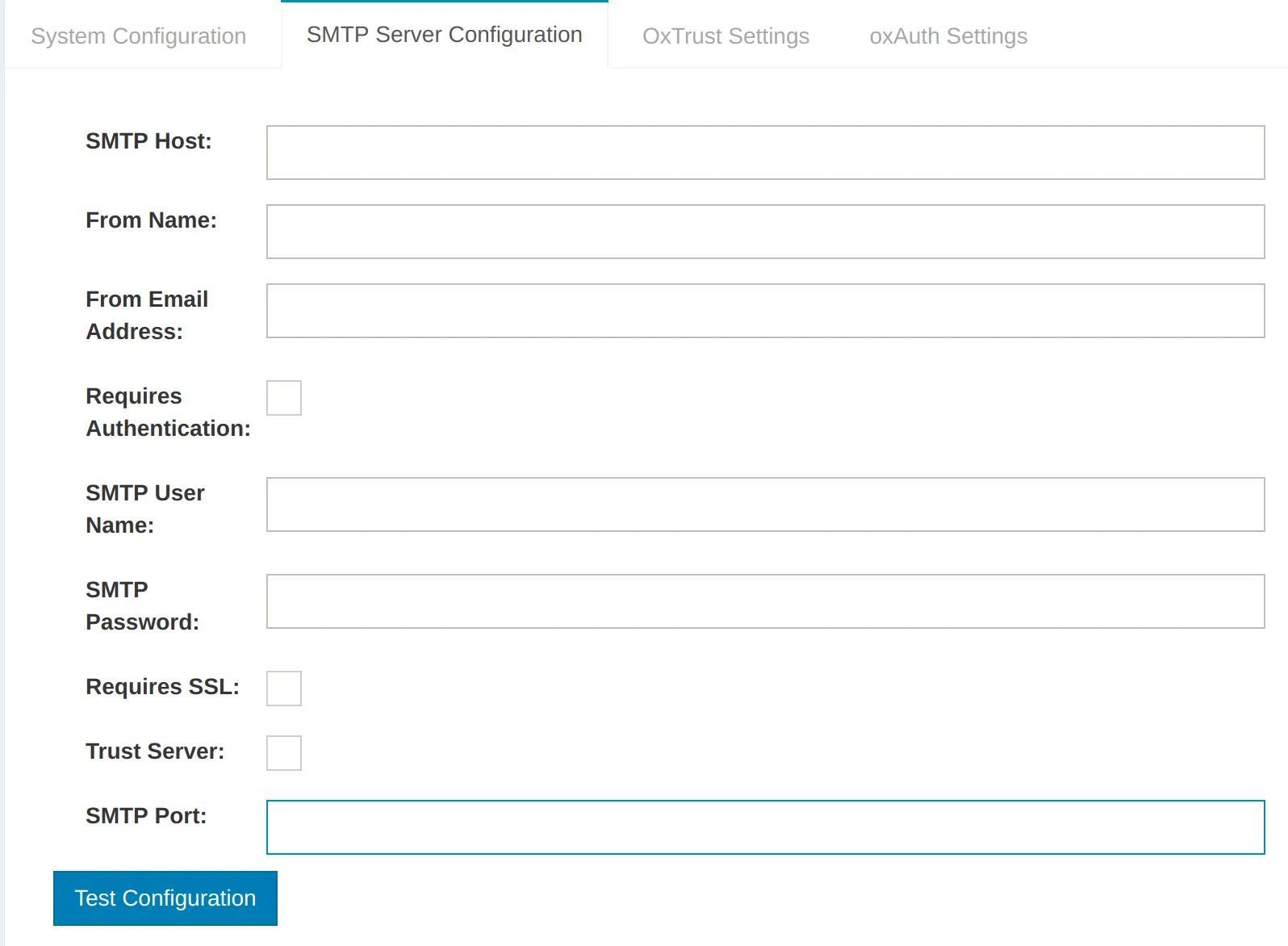
Fill the form with correct values according to your SMTP Server settings
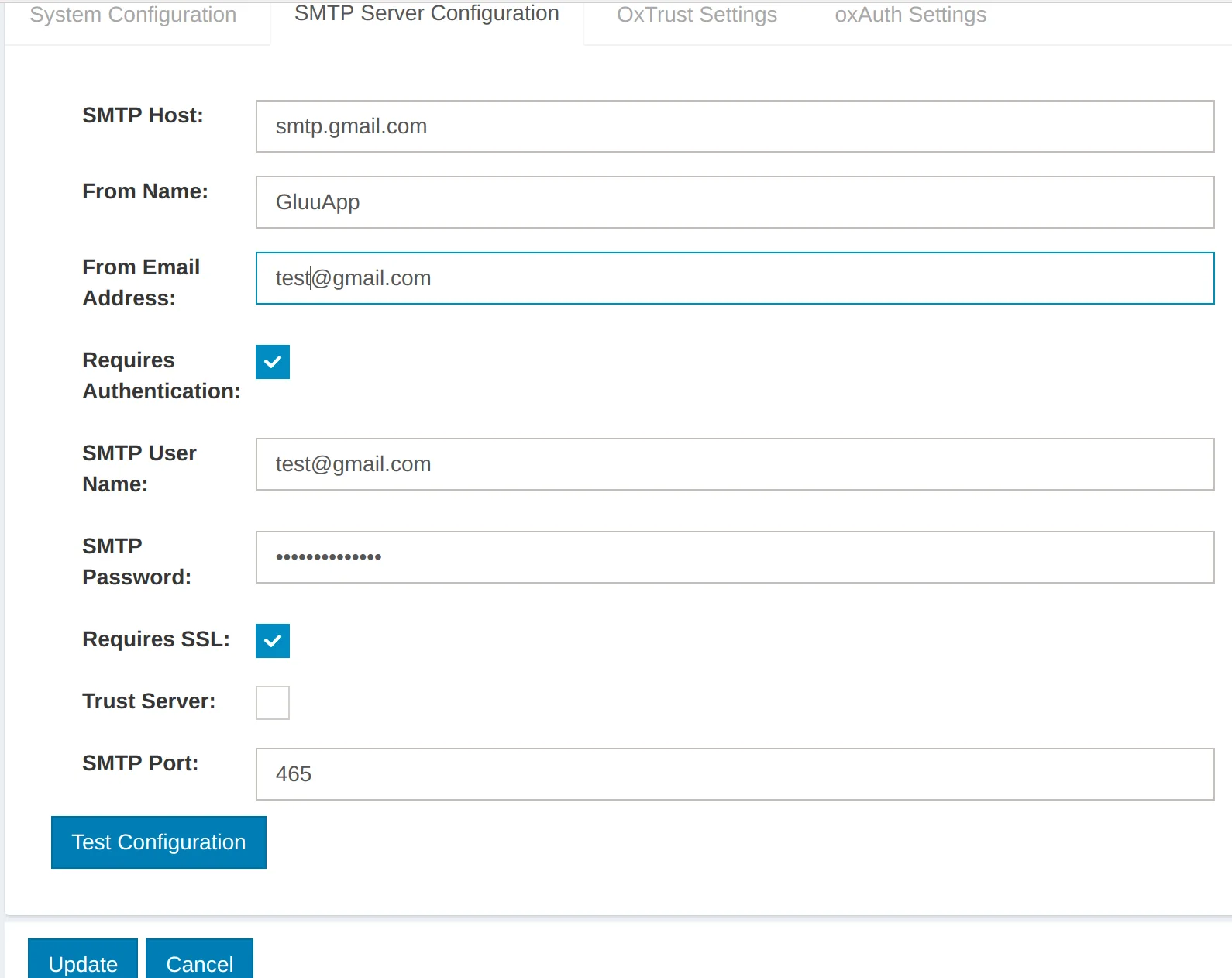
Click the
Test Configurationbutton to ensure the SMTP server is working: If the configuration is correct, then you will see a successful message like this: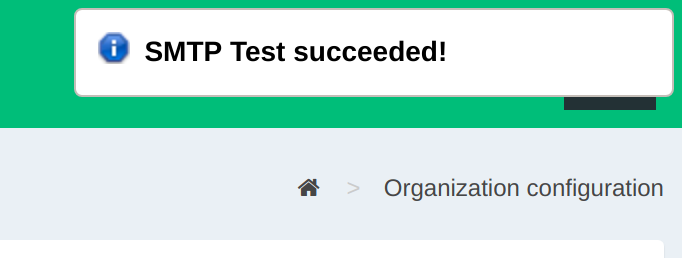
Click the
Updatebutton to save changes
#Enable Password Reset on OxTrust
Navigate to
Configuration>Organization ConfigurationSelect the
System ConfigurationtabEnable
Self-Service Password Reset
Click the
Updatebutton to save changes
#Test
Create a test user in the Gluu Server
Go to the Gluu Server login page
Click the
Forgot your Password?link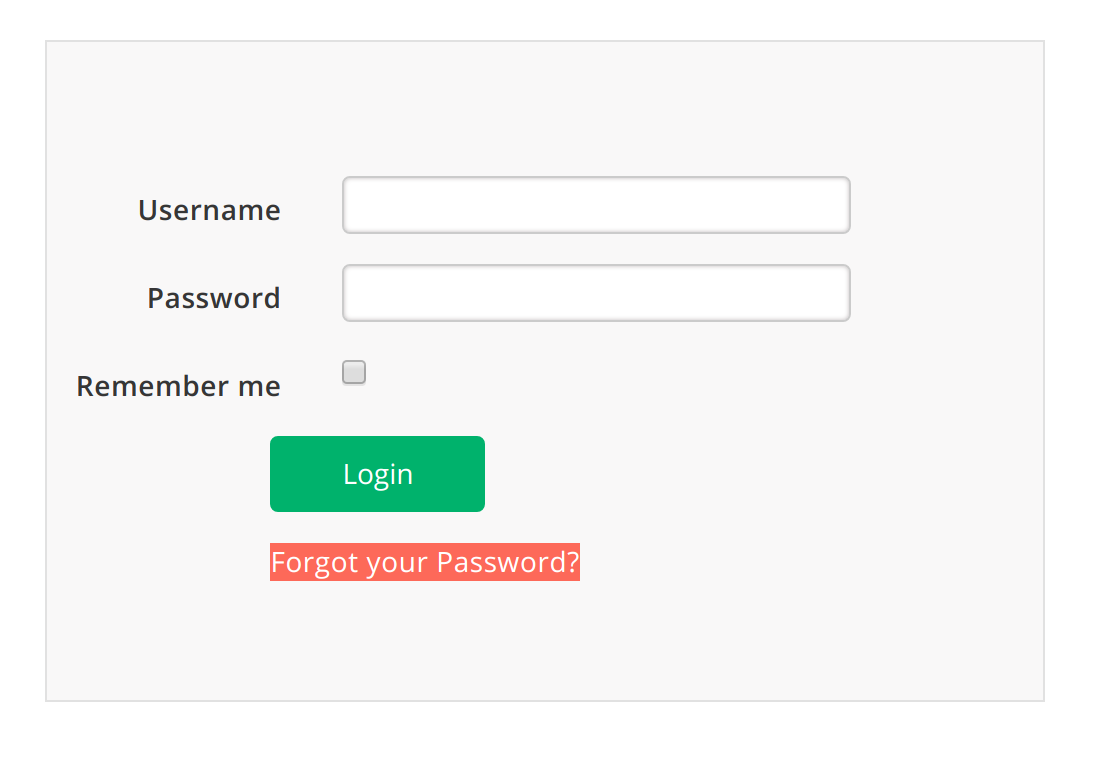
Fill the form with the user email and click the
Send Mailbutton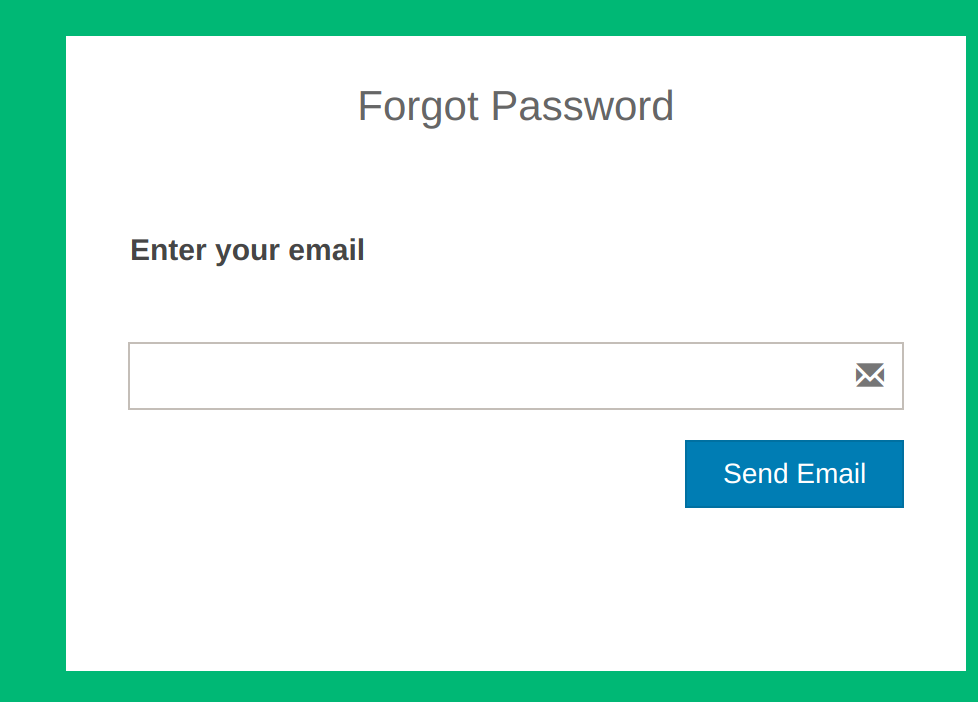
You'll get the following result:

Check the user's mailbox
