
Moodle
The following doc describes how to achieve SSO to Moodle using the Gluu Server IDP and the Moodle OpenID Connect (OIDC) plugin from Office 365.
#Install OIDC in Moodle
Clone the moodle-auth_oidc source code from its git repo:
# git clone https://github.com/Microsoft/moodle-auth_oidc.gitLet's assume that Moodle is installed at the following location:
/var/www/html/moodle.yoursite.com/public_html/.
Move the code to auth as follows:
# mv moodle-auth_oidc /var/www/html/moodle.yoursite.com/public_html/auth/oidcLogin as admin to your Moodle site and then navigate to:
Site administration > Plugins > Authentication
Follow the on-screen instructions about updating the database.
#Add OIDC Client in Gluu
In oxTrust, navigate to OpenID Connect > Clients.
Create a new client with the following specifications:
| Attribute Name | Values |
|---|---|
| Client Name | Your desired value |
| Pre-Authorization | Enabled |
| Authentication method for the Token Endpoint | client_secret_post |
| Redirect Login URIs | https://<hostname>/auth/oidc/ |
| Scopes | address, email, openid, permission, phone, profile, user_name |
| Response Types | code, token, id_token |
| Grant Types | authorization_code, implicit, refresh_token |
| Logout Session Required | True |
#Configure Gluu in Moodle
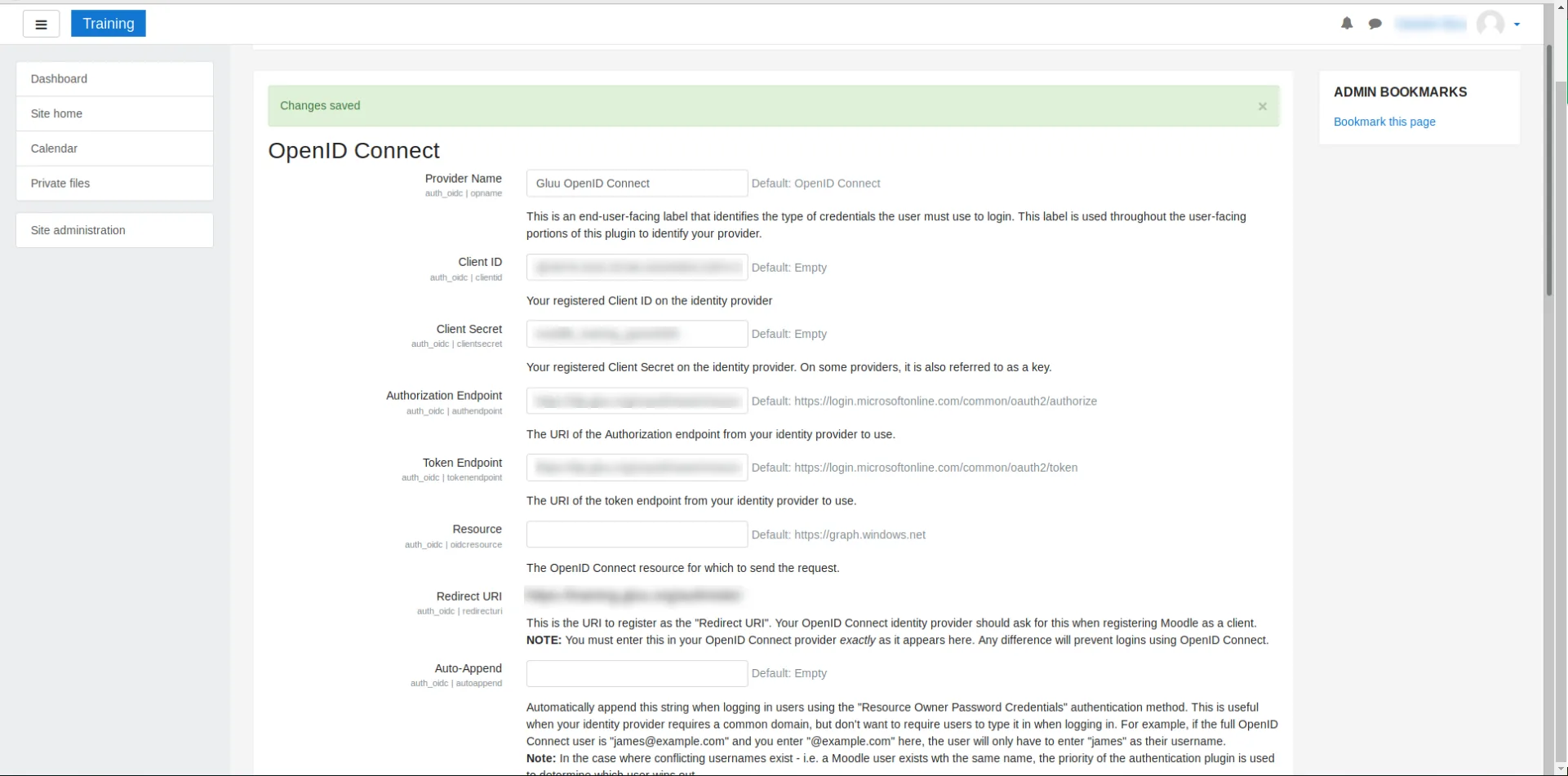
Enter the corresponding values in the Moodle OIDC form:
| OIDC Form Field Name | Values |
|---|---|
| Provider Name | Gluu OpenID Connect |
| Client ID | Enter the value from the newly created client |
| Client Secret | Enter the value from the newly created client |
| Authorization Endpoint | Enter the authorization_endpoint value, which can be found at https://<idp-hostname>/.well-known/openid-configuration |
| Token Endpoint | Enter the token_endpoint value, which can be found at https://<idp-hostname>/.well-known/openid-configuration |
| Redirect URI auth_oidc | https://<hostname>/auth/oidc/ |