
ThumbSignIn
ThumbSignIn can be integrated with Gluu Server to achieve strong authentication for enterprise applications. The administrator of an organization can deploy the ThumbSignIn Java SDK, UI components and custom Jython script in the Gluu server.
Here, ThumbSignIn is integrated with Gluu server as a primary authenticator to achieve passwordless login. The user will be able to log into the Gluu server with just his/her biometrics.
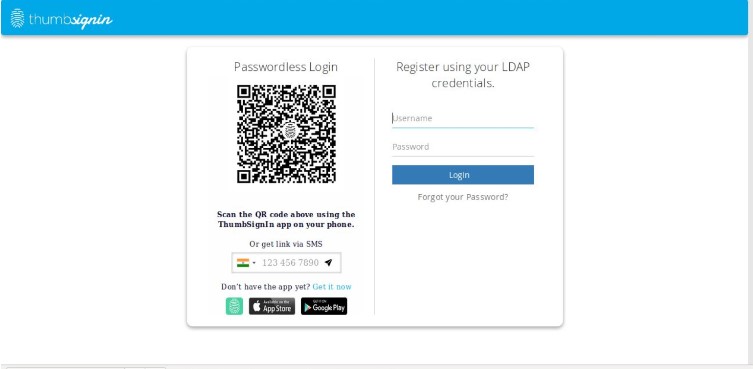
The first time user can log in with his/her LDAP credentials and then can register through the ThumbSignIn mobile app. For the subsequent logins, the user can directly login to Gluu server with his/her biometric.
#Prerequisites
- A Gluu Server (installation instructions)
- A ThumbSignIn interception script (found here)
- An account with ThumbSignIn
#Integrate ThumbSignIn with the Gluu Server
#Download ThumbSignIn UI components and Jython Script
- Download the UI components from here and add them into the source code under
oxAuth/Server/src/main/webapp/auth/ - Download the Jython custom scripts from here and add them into the source code under
oxAuth/Server/integrations/ - Download the ThumbSignIn java sdk jar file from here and add it into the Gluu Server's
opt/gluu/jetty/oxauth/lib/extfolder
#Enable custom scripts for ThumbSignIn
- Log into the Gluu admin dashboard ->
Person Authentication Scripts-> Click "Add Custom Script Configuration" button - Add the custom ThumbSignIn interception script and select the "Enabled" option
- Add the following custom parameters and save the custom script configuration:
| Property | Status | Description | Value |
|---|---|---|---|
| ts_host | Mandatory | The URL of the ThumbSignIn API server | https://api.thumbsignin.com |
| ts_apiKey | Mandatory | These keys are required for ThumbSignIn authentication | Follow the below steps to get API key |
| ts_apiSecret | Mandatory | These keys are required for ThumbSignIn authentication | Follow the below steps to get API secret key |
#Configure ThumbSignIn Account
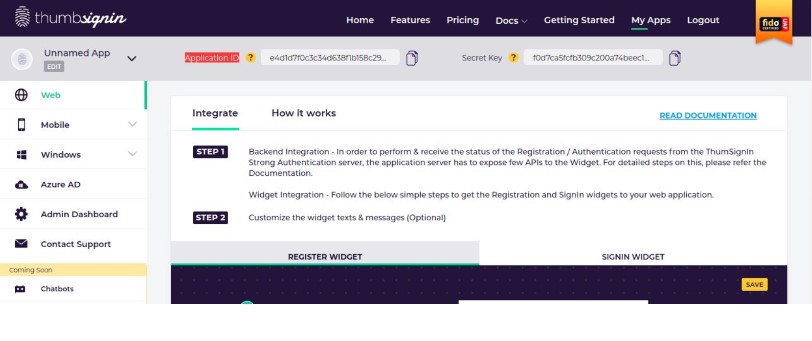
The ts_apiKey and ts_apiSecret key can be generated by following these steps:
- Sign up for a ThumbSignIn account
- Enter your email address and click
Try It - Scan the QR code displayed on your screen using the ThumbSignIn mobile app
- After successful registration, you'll be redirected to the home page
- Click
My Appson the menu - Use the Application ID as the
ts_apiKeyparameter - Use the Secret Key as the
ts_apiSecretparameter
#Enable ThumbSignIn as default authentication in the Gluu Server
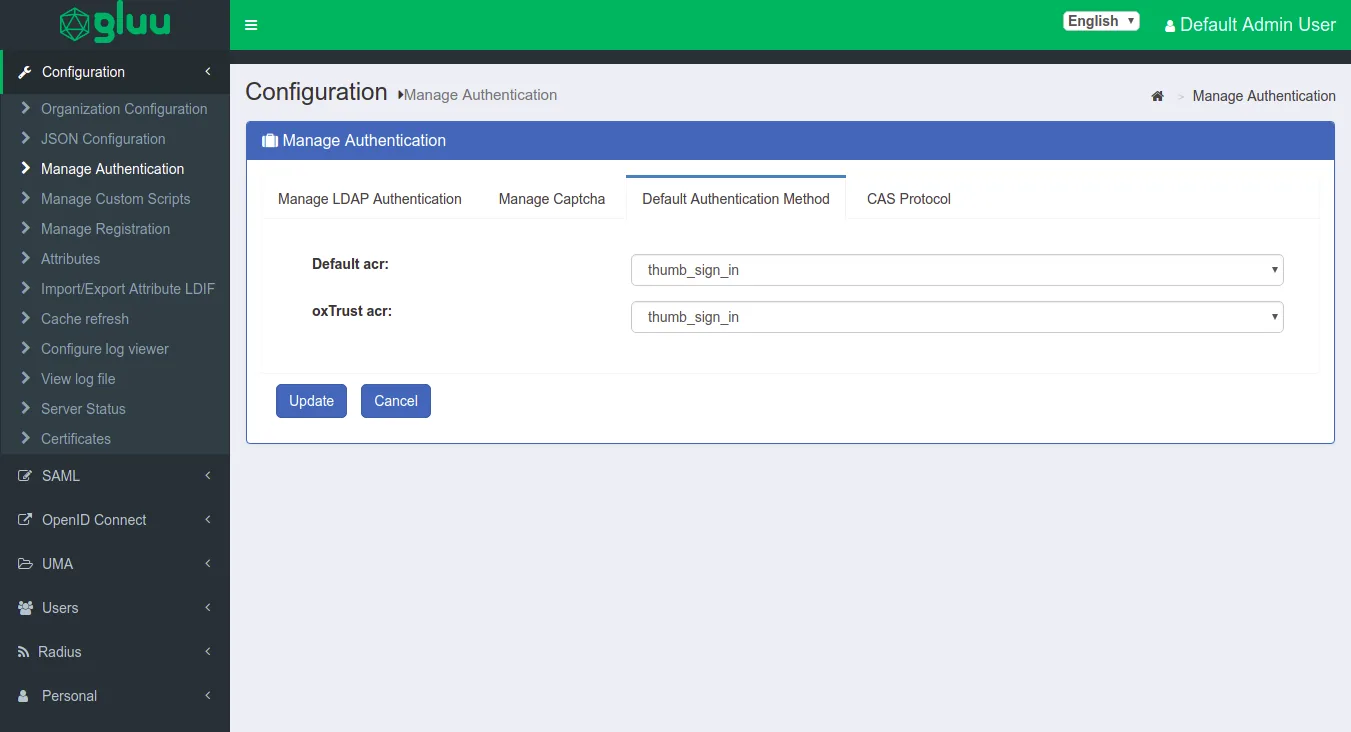
Navigate in the Gluu Server UI to Manage Authentication -> Default Authentication Method and select thumbsignin as the Default acr, then click update
Go to JSON Configuration -> oxAuth Configuration and set the sessionIDUnauthenticatedUnusedLifetime parameter to 240 seconds
#Test the ThumbSignIn integration with Gluu
To test the ThumbSignIn login flow, simply navigate to the Gluu login URL. If you see the following login page, the integration was successful:
For more information about ThumbSignIn, see their website.