
Testing Flex SAML SSO with sptest
tags:
- administration
- test
- SAML
- SSO
This guide shows how to test Flex for SAML SSO. We will be using sptest test service provider to complete our test.
#Installing SAML IDP in the Flex Server
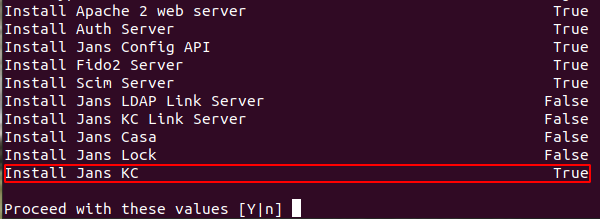
During installation the Flex Server, make sure you have selected the Jans KC module to be installed.
#Configure IDP in Flex Server
Follow the steps below to create a TR and apply them in Flex Server:
- Download the SP metadata using the following command:
wget https://sptest.iamshowcase.com/testsp_metadata.xmlOpen the Flex Admin UI and navigate to
SAML > Configuration.Select
Keycloakas the IDP.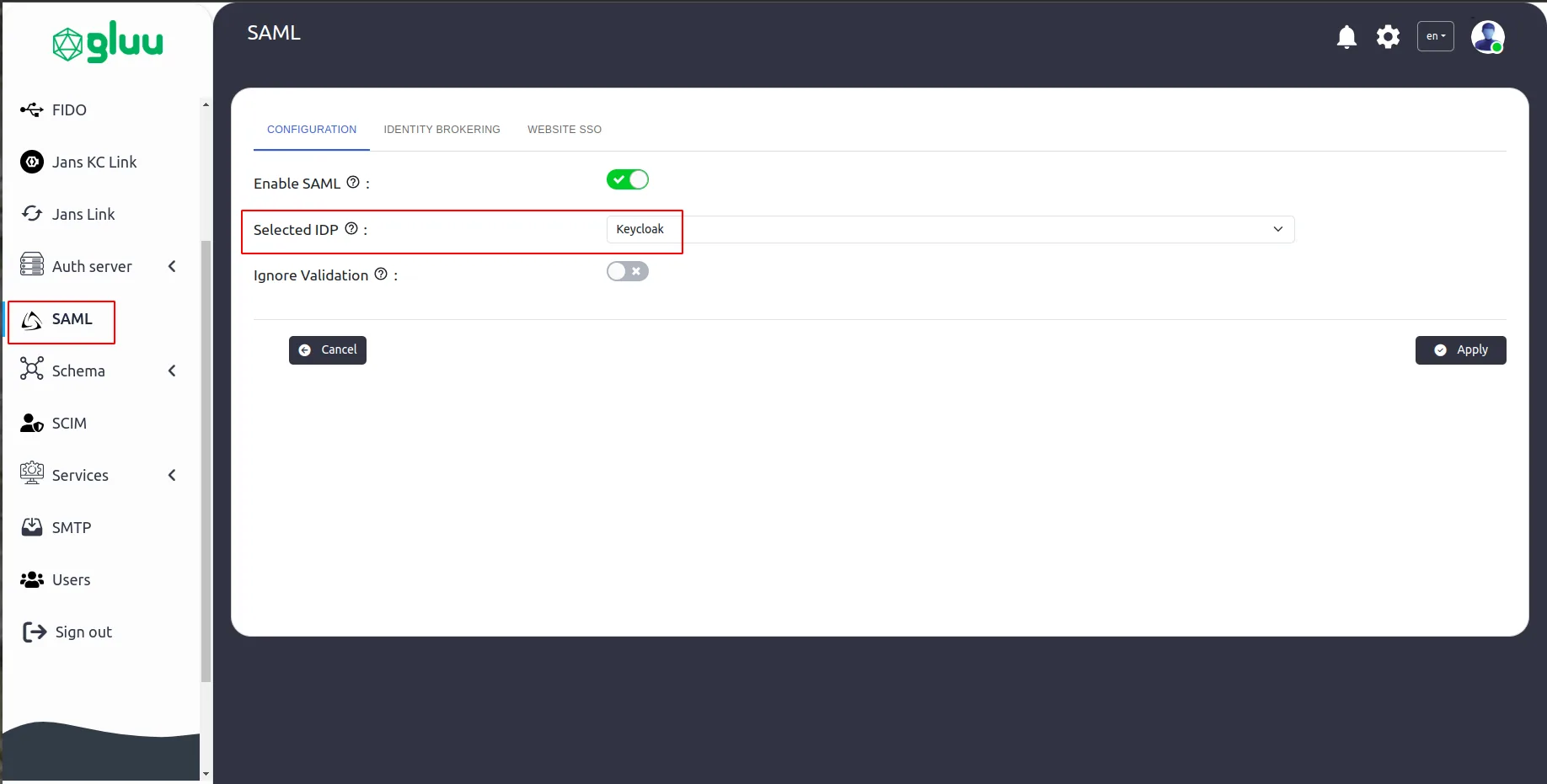
Then navigate to
Website SSO>Add Service Provider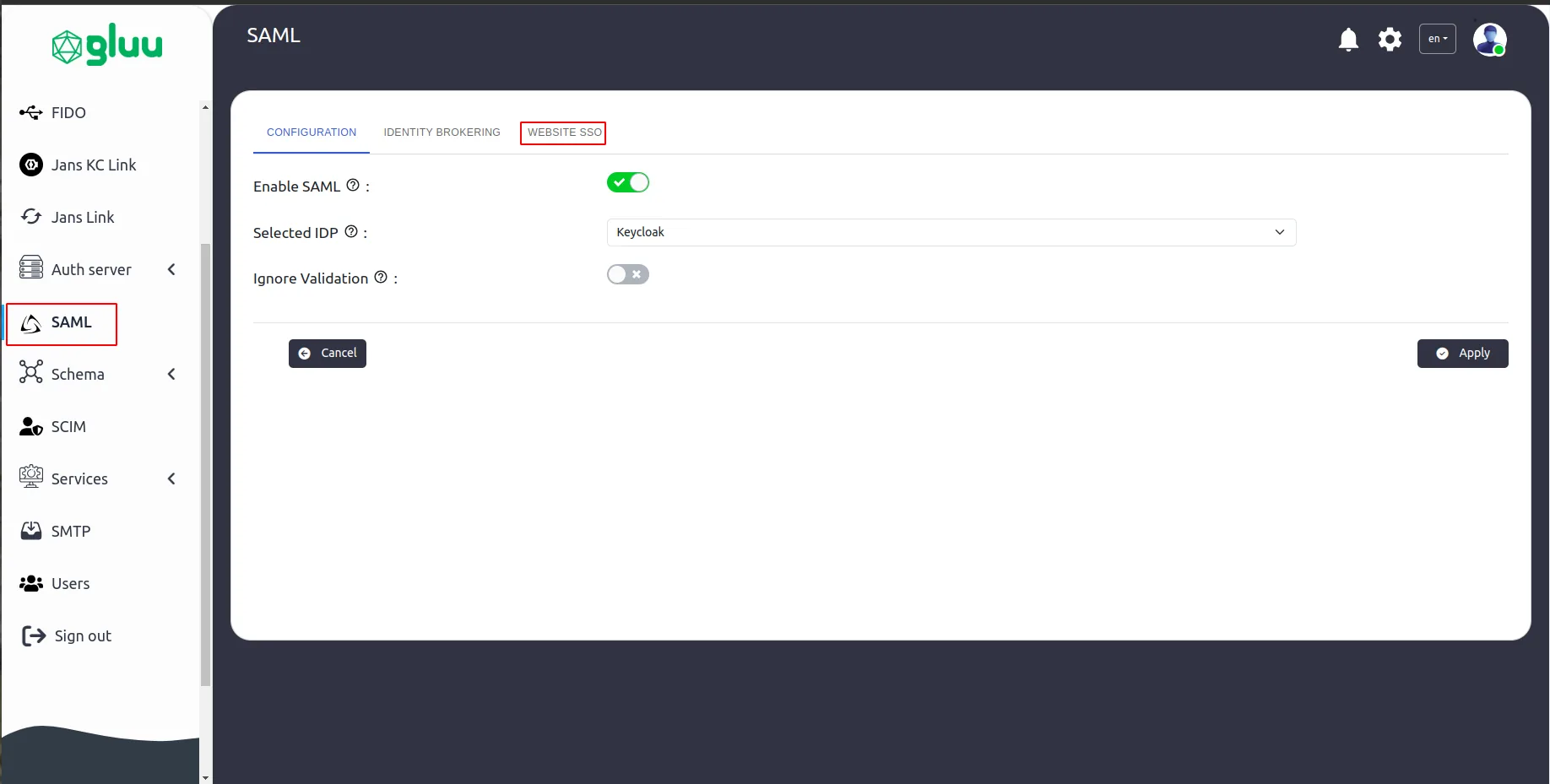
Release the required attributes (e.g.,
username,inum).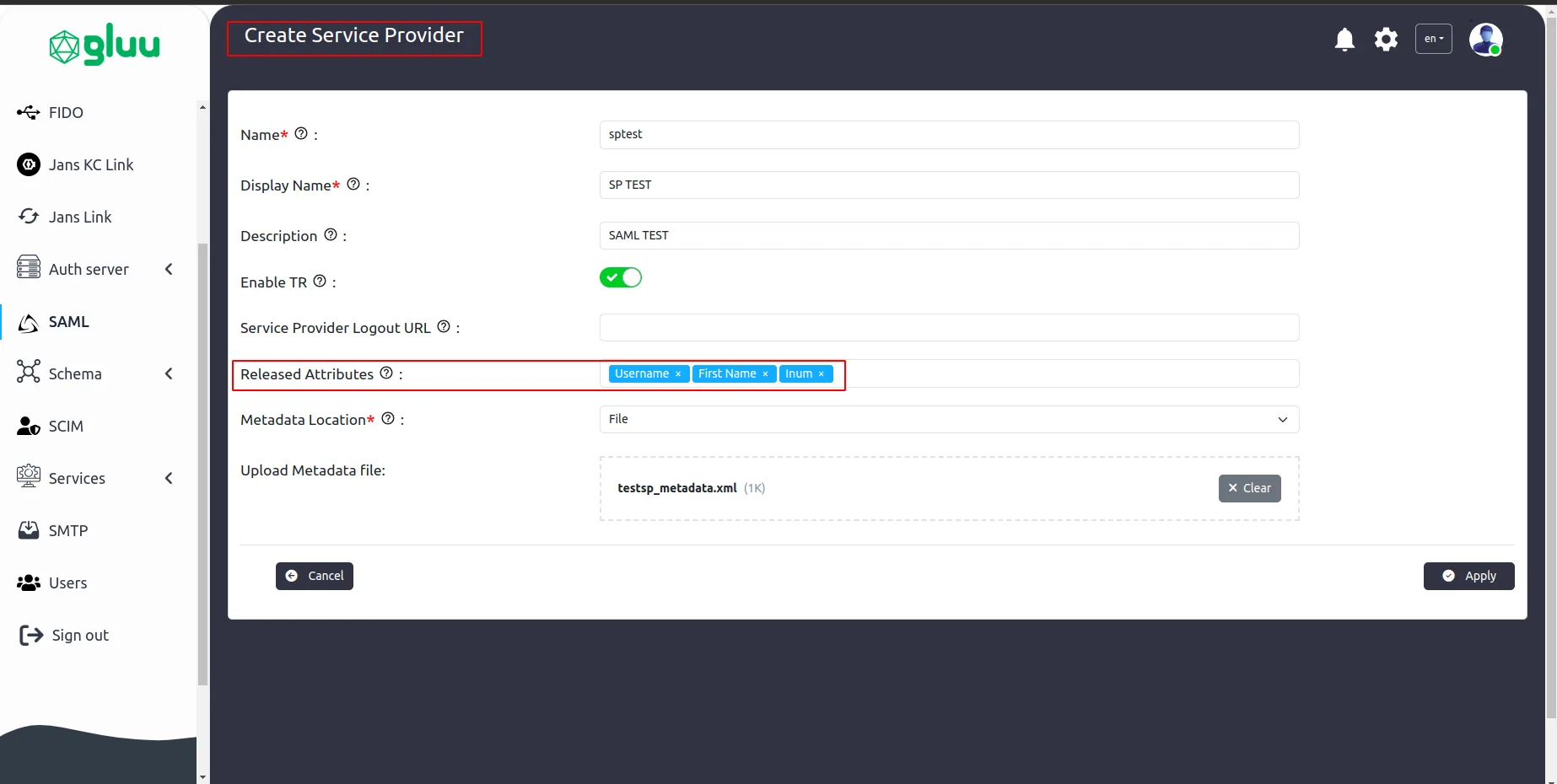
Finally, click Apply.
#Configure SP in Iamshowcase
After configuring the IDP in Flex Server, it's time to connect the service provider (SP) with the IDP:
- Download the IDP metadata from the following URL:
https://<your-janssen-server>/kc/realms/jans/protocol/saml/descriptor- Go to:
https://sptest.iamshowcase.com/instructions#spinitand upload the IDP metadata. - After the metadata is uploaded, it will provide you with an
SP link to test the SAML SSO flow.

#Test SSO
Copy that link and open it in a browser. You can open it in incognito mode to avoid session issue.
This will redirect you to the Janssen login page. Once you log in with your user credentials, you will be redirected back to the SP’s protected page, which will display the user session details.
Refer to the Janssen Server SAML SSO documentation for further details.
#FAQ
Check KC scheduler log for any TR issue
/opt/kc-scheduler/logs/scheduler.logAlso check file directory inside
/opt/idp/configs/keycloak/sp/metadata